
 Register
  Sign In

 Contact us

EuropeID Help Center


Customer Support Information
E-mail Client configuration - FAQ - Setting up multiple email accounts in the Thunderbird email client
Setting up multiple email accounts in the Thunderbird email client
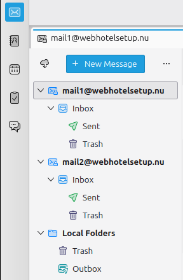
1. You can see your email accounts in your overview. (Here is an example with 2 mail accounts)
2. Right click on the account and select ”settings”
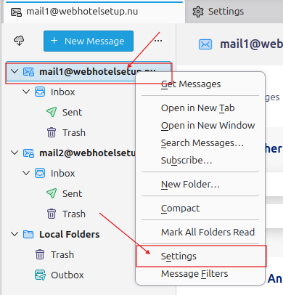
3. Scroll down the list to the left, till you find “Outgoing Server (SMTP)”.
You must have a profile to each e-mail account in the window to the right.
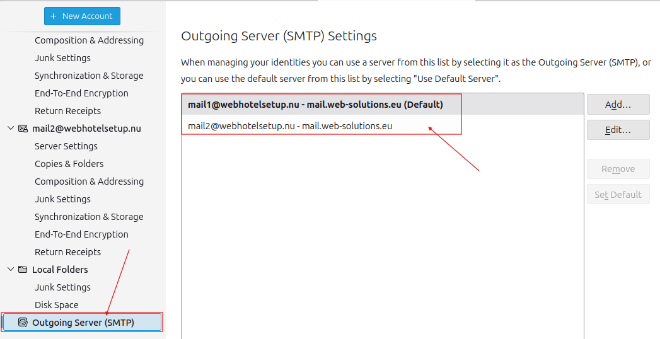
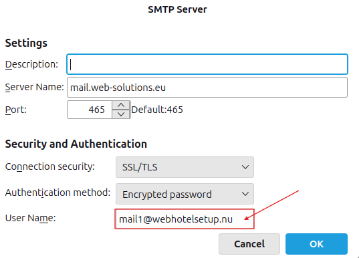
4. If you don’t have a profile for each e-mail account, you can add the one that is missing. Select “Add”
Use the settings below, in in the section “User Name” type your own email address.
5. Next, you need to make sure that the email account is using the correct SMTP profil in “Settings” that corresponds to the email you want to send from:
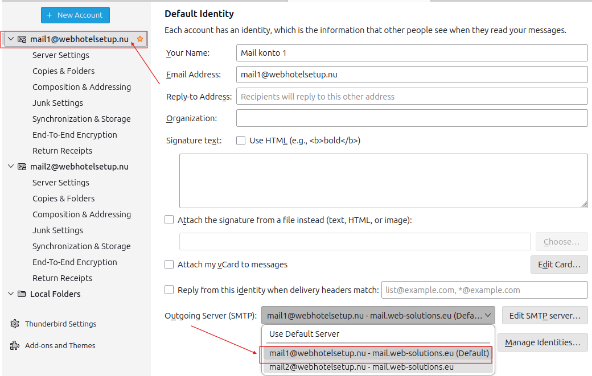
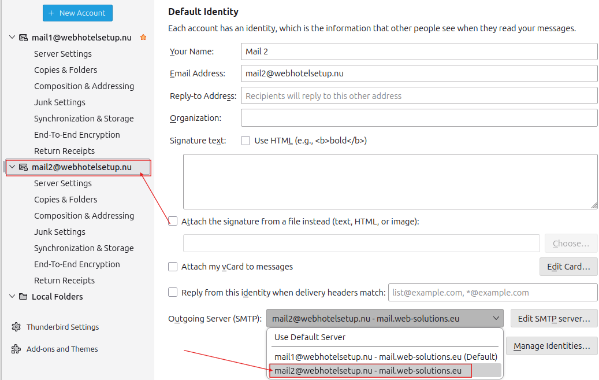
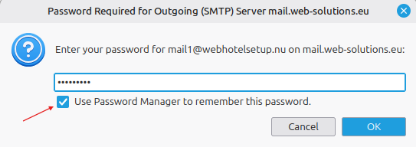
6. You may be asked to enter the password for the mail server the first time you want to send an email from the account, but then you can simply enter your password for the email account and save the setting.


 See related questions...
- Setting up multiple email accounts in the Thunderbird email client
- How to configure Thunderbird email client?
- How to configure Outlook email client in Windows 11?
- Guide to setting up mail on Macbook, macOS Sequoia 15.3.1
- Webmail guide for MacBook (macOS 14.5)
- How to view the source of a message in Outlook 2007
- How to view the source of a message in Icewarp Web Mail
- How to view the source of a message in Mac OS X Mail
- How to view the source of a message in Outlook 2010 and 2013
- How to view the source of a message in Thunderbird
 Check what is on offer