
 Register
  Sign In

 Contact us

EuropeID Help Center
Domain search
Site search
WHOIS


Customer Support Information
Mobile device configuration - Windows Phone 8
Windows Phone 8
Please follow the instructions below to add email account using Windows Phone 8.
First step:
- Go to Settings
- Open email+accounts
- Add an account
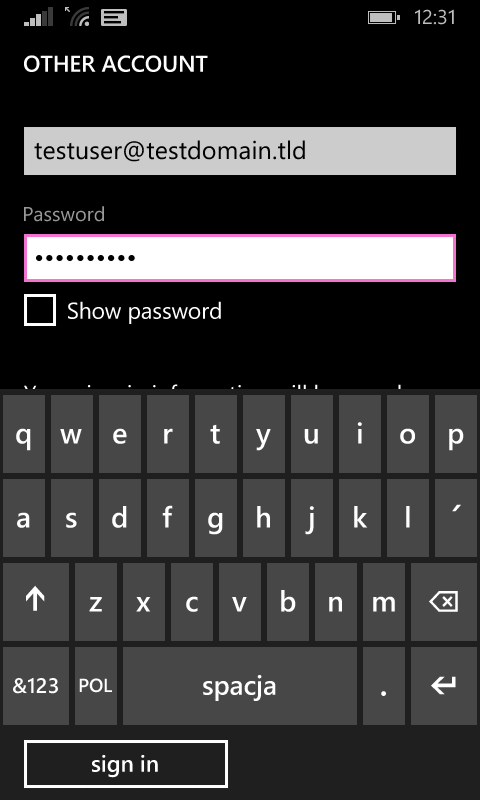
- Enter your email address and password
- Sign in
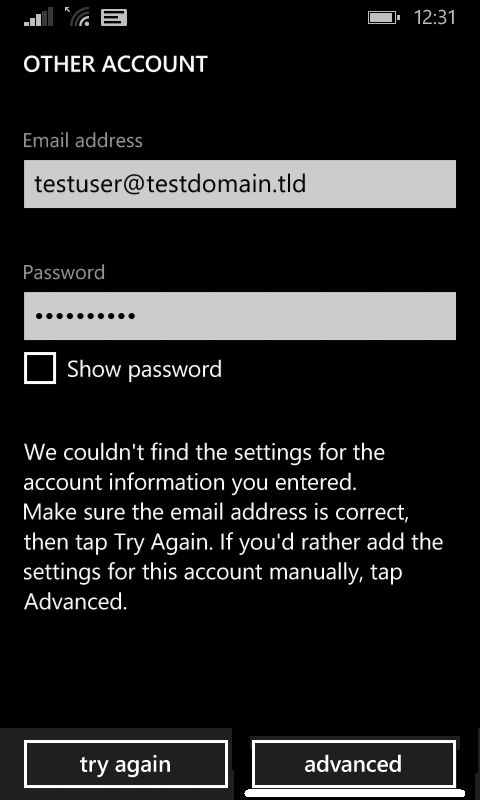
- Account need to be configured – go to Advanced tab.
Second step:
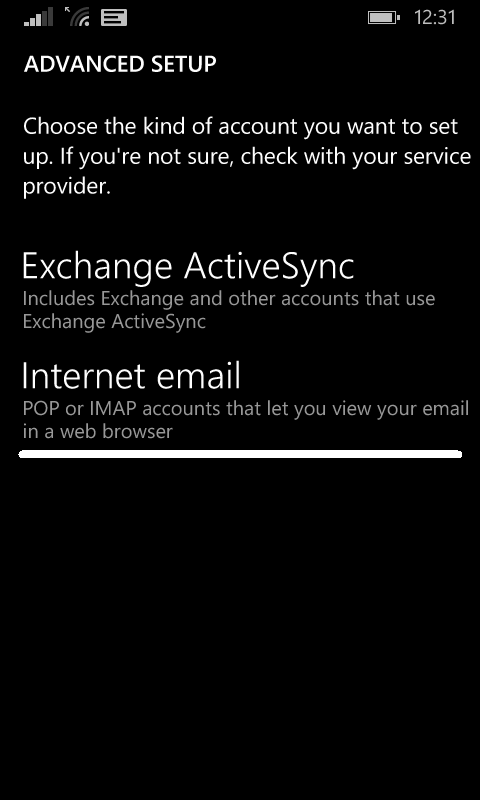
- Choose Internet email – We strongly recommend using IMAP, it helps to synchronize multiple devices with the account and the messages are kept on the server.
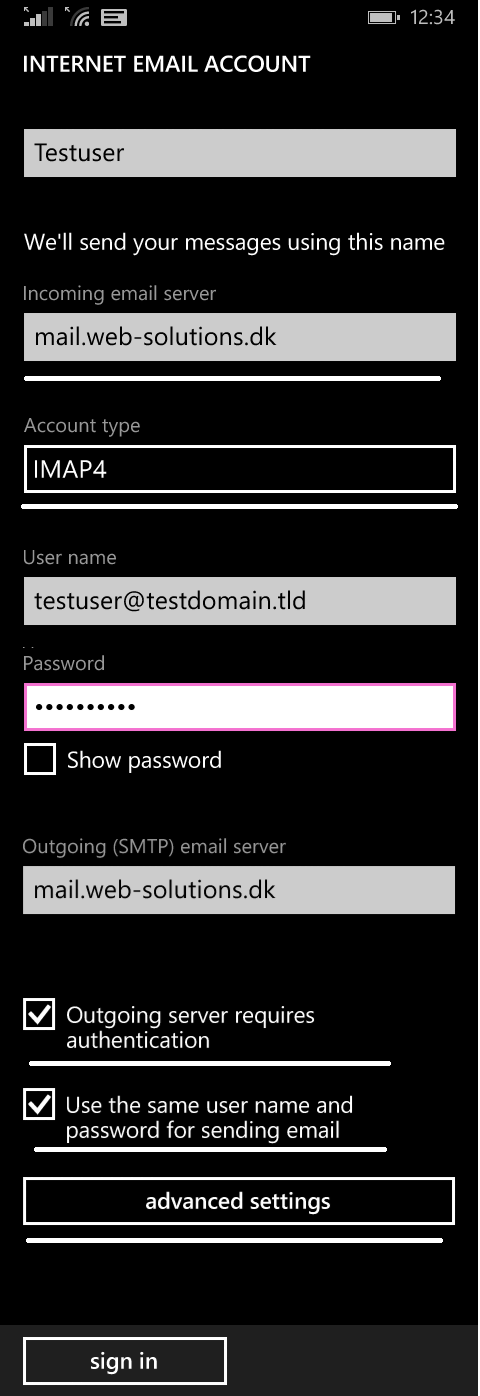
- Enter your email account details:
- incoming server: mail.web-solutons.eu
- account type: IMAP4
- username: your e-mail address
- password
- outgoing server: mail.web-solutions.eu
- Select: outgoing server requires authentication
- Select: Use the same username and password for sending email
- Open advanced settings (see picture below)
Third step:
- Select: outgoing server requires authentication
- Select: use the same username and password for sending email
- Require SSL for incoming email
- Require SSL for outgoing email

- Sign in to finish.


 See related questions...
- Add email account to your Samsung – Android 16 – Gmail APP
- How to setup Calendar from SoGo on Iphone
- Add e-mail account to your iPhone - iOS 26
- Mail guide for iPhone - iOS 18 (18.4)
- Add mail account to your iPhone - iOS 17 (17.6.1)
- How to add e-mail account, guide for iPhone - iOS 15 (15.4.1)
- How to change e-mail password in Windows Phone
- How to change e-mail password in Android
- Android
- Windows Phone 8
 Check what is on offer